Search the Community
Showing results for tags 'wood working'.
Found 11 results
-
Slowly but surely making progress on getting my shop back up and running. Hung my air cleaners today, love my kubota!!

-
I would like a cheaper source for elect power for my woodworking tools. I had one of those ads from the internet that they had a deal for me. I listened for a long time and it sounds good BUT is it? ( https//www.backyardrevolution.org//hop=henfymcfly ) Does any one know of this co. ? I worked for a lineman for a few years and folks always wanted cheaper power. Preston
-
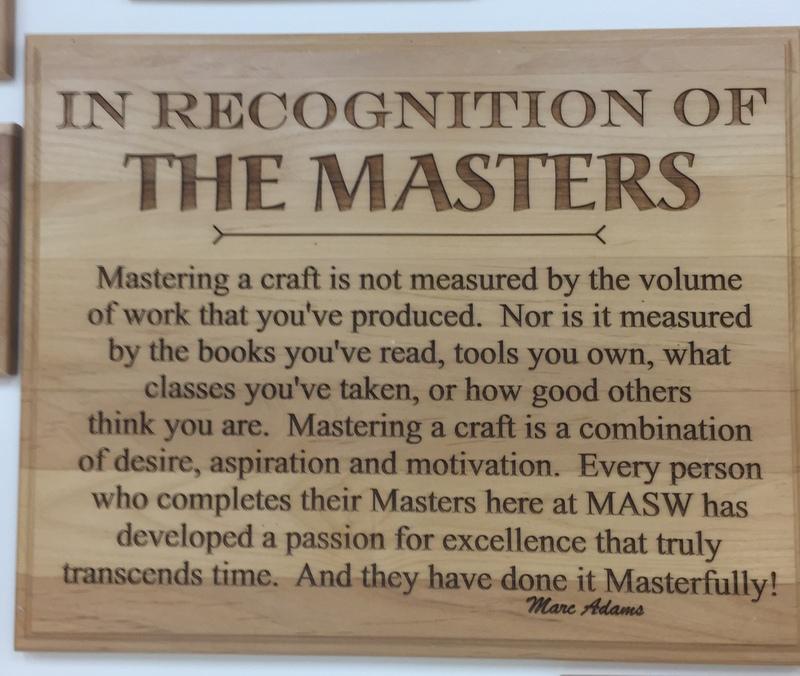
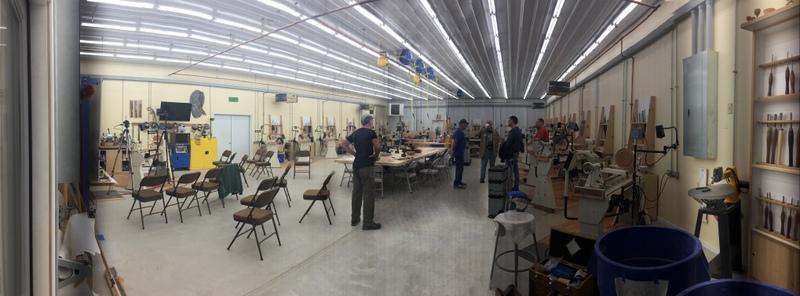
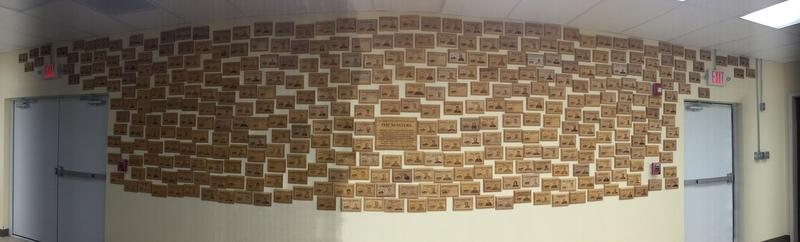
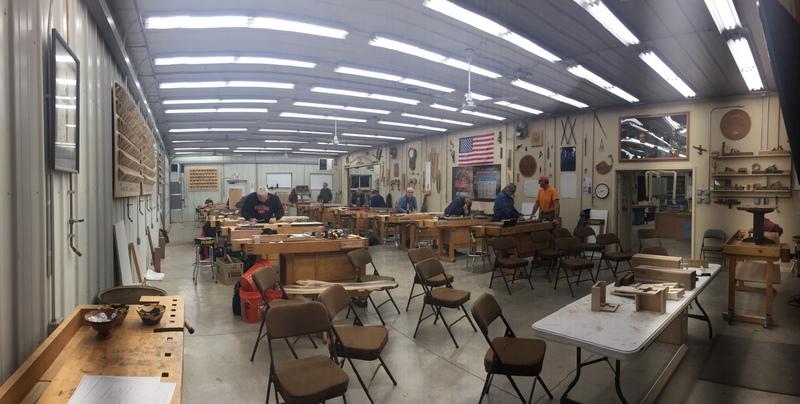
Spending a week at Marc Adams Academy of Woodworking just south of Indianapolis. A most amazing place!! I am taking a class with Glenn Lucas again this year, what a great technician and what a great teacher. Almost posted this in the general wood working area but since I'm taking a turning class I decided to post it here. Just thought I'd share a few pictures of the facility. It's important to note these pictures don't begin to show just how extensive this complex is. One of the assistants told me there are about 40,000 square feet under roof. There are about 400 people who have completed the masters program here, it's an extensive training and requires serious dedication to get that done. This is a wall that has several inspirational or clever snippets on it. This one is my favorite. 2018 instructors. the lathe room, 16(I think) oneway 1624 lathes. One of the machining rooms, there are several One of the assembly rooms, and again, there are several. This class is working on a Nakashima style side table. A display case of some completed projects Kind of like wood worker Nirvana Steve
-
Check This Out! Maybe @Jim from Easy Wood Tools will be there!
-
I can't seem to find the exact American company who makes this wood plane and I would appreciate any help. The frog is stamped steel. I'll provide some pictures.
-
Posted a while back showing some walnut I was working into bowl blanks. With Christmas requests and some other distractions I'm just now getting time to start making bowls. Most of them will be natural edge as that shows the crotch grain so much better. Most of that gets turned away in a normal bowl. This is the fourth bowl so far. Still will need to dry for a couple weeks and then get remounted, sanded, and finish the bottom. Picture doesn't show it well but there is some great grain in the bottom of this bowl. It's gonna be a pretty thing. It does make a mess though. Steve
-
I've mentioned that to take advantage of the potential of one of these little laser engravers there are some software programs to know. One of these is an open source program called "inkscape". To someone who has never used it, inkscape can be intimidating as there are so many menus, options, controls, etc. etc. With a little effort it all starts to make sense and a person begins to understand what is going on. This is a little step-by-step to create a name tag file that can be used with a cnc laser or cnc engraver. Once the main template is created it's a simple matter to change the name to rout or engrave several different tags. The picture above is the main screen from inkscape. As you can see there are menus and tool bars all over the place. The only one that concerns us just now is the one on the right of that picture and the close up just to the right of this text. This dialogue defines the size of the document we're creating. One of nice things about inkscape is the ability to create a working page whatever size is needed. For a name tag that's about 3.5"X 2.4". The laser software is written in millimeters so the document will be created in millimeters. In this case, 90X58 millimeters. Inkscape will work in mm, inches, feet, or even pixels. The document page is outlined in the above picture. After creating the page three items were added to it. First, a rectangle slightly smaller than the document. This defines the actual size of the name tag as the laser will engrave this box and provide a guide for cutting out the tag. These small lasers aren't powerful enough for actually cutting wood, not even thin veneer. By engraving the rectangle I don't have to measure to cut but can just follow the line inscribed by the laser. Then, two decorative ovals were drawn. There are menu boxes to size, position, and manipulate the ovals or any other object. A person can even determine how thick the drawing line is. At this point the file is saved in inkscape as an SVG file. That is the inkscape default format. SVG stands for scale-able vector graphic. That type of graphic can be made larger or smaller without losing detail or resolution. This is now my master template, From now on the only design changes will be different names as required. When a name is added it probably won't be exactly where you want it. For this example I'm going to center it on the page which is also the center point of the ovals. Incidentally, the rectangle and the ovals were centered on the page using the same method. Notice in the example the "name" is selected. It can be moved around, rotated, enlarged, or made smaller. Centering an object on a page couldn't be easier with inkscape. Simply open the "alignment menu and choose what you want to do. Again, only because the program is so powerful there are many options. Looking at the menu to the right you can see I've chosen to align my name relative to the page. The two symbols I've pointed out represent vertical centering and horizontal centering. Simply clicking on those center the name perfectly on the page. A person can also choose to center items relative to each other or a dozen other options. At this point it does get a little tricky. Its important to keep in mind a laser engraver is basically a plotter and not a printer. A printer moves the print head back and forth. As the paper advances the printer makes a dot in the right place, connect the dots and you get a picture or text. A plotter actually follows a path, much like writing in cursive. So, a path must be created that the plotter can follow. Two more steps and the file will be ready to send to the laser. First, all four objects, the rectangle, the two ovals, and the name must be selected. You can see a selection box around all four objects and I've chosen the option "group" in the drop down menu. That will make all of the objects one entity as far as inkscape is concerned. If I enlarge one, they will all be enlarged the same amount. After grouping them the selection boxes morph into one box as there is now only one object. At this point there is one more operation before the file can be saved and that is to add the object to the "path" After, the file is saved in "DXF" format which is a "desktop cutting plotter" file. This may seem a lot of steps but in reality it takes about five minutes to do this start to finish. Once the master template is created the name can edited in about a minute. This is a very simple example of creating a file that a laser or cnc engraver can read. The next step is to open the laser software and load the dxf file for engraving.
-
While it may not seem so at first glance, a laser engraver is much like a table saw, a lathe, or even a router. Now that you have it, what can you do with it? Not much as it's a "core" tool. With a table saw, an add on might be a dado set, or molding heads. A special sled or jig. A lathe is very dependent on other tools to prep stock. Different operations on a lathe require different accessories. A hollow vessel requires completely different tools than a spindle. Of course, a router or shaper must have bit's or cutters to be functional at all. Not to mention a fence or sled. A laser engraver? Well, it must have graphics and/or documents to do what it does. That may seem a simple matter, after all, there are thousands of images just waiting to be downloaded. While this is true, many of them are copyrighted and water marked. What if a person can't find the "just right" image to download? What if someone has a special request, like a graphic of a specific scene or pet? How to add text to a picture? How to make the picture fit on what is to be engraved? What if only a part of the image is to be engraved? Let's address image size and making it fit the project first. It's fairly easy to enlarge or shrink an image. Windows paint can do it as can any number of programs. The problem is, enlarging or shrinking an image often results in loss of detail and crispness. This is an image called Odin's triangle, printed, or burned it will be about 3" tall and 3" wide. The lines that form the triangle are fairly crisp and sharp. This is what is called a "raster" image. That means it's made up of tiny dots of different color arranged in a pattern. What if I wanted the image to be bigger? Say, 3 times as big. You can see, the enlarged image isn't nearly as sharp as the original. This will happen with any raster image, that includes image files like bmp, gif, jpg, to name a few different types of raster images. The answer is to convert the picture to a "vector" image. A vector image is drawn according to a mathematical formula. No matter how big or small the image is, the formula remains the same. What that means is, the image always remains sharp and crisp. What if a person had a picture of a leaf they wanted to use? Easy enough to do, but what if only an outline is needed? What about using more than one leaf? What about overlapping them? That way it would look like one leaf laying on top of the other. That would be great for wood burning, painting, carving, etc. etc. So, let's use the leaf picture at the right, copy it and paste it to look like one leaf is on top of the other. It will look something like this. Hmmm, not exactly what we had in mind, is it? Why didn't it work? Well, because a bitmap, ie, jpeg, gif, bmp, can only have one layer and there has to be a back ground. Normally the background is white and on a white page you can't see it, it's still there and will make it's presence known at the worse times. Wouldn't this look much better? This isn't the best job of editing as I still have a little back ground showing but that is easily addressed. The programs that manipulate images like this are the tools or accessories a wood burner or a laser engraver needs to be much more flexible than it would be otherwise. These programs are also very useful to a wood carver or pyrographer. So, what are the programs that work this magic and how much do they cost? Probably the most well known is Adobe illustrator. To the best of my knowledge, illustrator can only be leased at this point. Licenses start at around $10.00 a month. Not a lot of money but for a now and then user not a good value either. Fortunately, there are completely free alternatives. The two programs I use are "Gimp" and "Inkscape" Both are open source and completely free for downloading, although I recommend only downloading from their official websites. https://www.gimp.org/ https://inkscape.org/en/ These are two powerful, full featured programs for manipulating images. Because they are so powerful, there is a steep learning curve associated with either of them. This section of the blog is not meant to be a tutorial on using these programs, but rather just to introduce them to someone who may not be aware they are available. While there is a steep learning curve with either, there are also dozens and dozens of tutorial videos on youtube about them.
-
After assembling the machine it's time to install the software. I have to say before I get into that, assembling the machine is well within the scope of most any wood workers ability. It's kind of like Lincoln logs. If a person takes it in small steps and doesn't look at the overall picture, it's not too daunting. Like my brother's wife always says, "it's hard by the yard, but it's a cinch by the inch" she is right. Now, what can I say about the software? A lot, and not much. It's important to keep in mind, for myself, as much as anyone. This is a bare bones, entry level, hobby machine. It will engrave an area approximately 11" X 14" and will cost 2-300 dollars depending on the time of day, literally. Any of the name brand machines, like Epilog, will cost a few thousand for their entry level machine. I'm not comparing my machine to those at all, they are more refined, more powerful, more capable, etc. etc. Like the instructions, the software must be downloaded from the banggood website. Its kind of confusing just what to do once it's downloaded and there is zero technical support. Once again, I knew that going in. And like before, I spent several hours googling, researching, watching video, reading instructables and struggling to install the software and get it working. One big problem is that most virus software doesn't like it, so it won't allow the package to install. A person basically has to disable virus protection during the install process, something I didn't care to do. After the software is installed, the computer must be configured to communicate with the laser, guess what? Back to youtube, google, instructables, etc. etc. to find out how to do that. Again, hours were spent figuring it out. In fact, I never did get that first software package to work but downloaded a different package from gearbest.com and finally I could communicate with my machine. The engraving program included with the software is called "benbox". It is a very, very basic setup. To give an idea how basic, it always loads in Chinese, so every time a person starts the program they must choose a different language, unless of course, they speak Chinese. Basic settings must be restored every time the program is started, such as laser speed, power, etc. etc. You can't save a profile, like if you find settings that work well with maple, they must be written in a notebook and re-entered each time a person would burn maple. A person must also go through the steps to connect with the machine every time it starts. None of this is a big deal but it's not what most of us are used to with a program. Even so, eventually I was ready to try to engrave something. The first several times I tried, mostly what I made was a black hole in whatever I was using, It seemed no matter what, that was the result. At the risk of repeating myself, once more, google, youtube, etc. etc. etc. After much research, tweaking, setting up and testing I got to where I could get the black hole to move slightly and make little square boxes that kind of resembled charcoal, frustration was beginning to set in and I began to wonder if I'd wasted both time and money. Back to the web, finally I thought, maybe there was a benbox forum? Guess what, there is. benboxlaser forum All I can say is, forums are a gift, in only an hour or so I had learned enough on the benbox forum I was able to engrave a simple gif of a horse. Not the most impressive bit of laser engraving but hey, it was a start. The next few days I spent a lot of time on that forum. I have to say it again, a good forum, like this one, and from my limited experience, the benbox forum is one of the best things about the net. In just a short time, I learned much about the capabilities of the software and the machine. I also saw, there are people who own this machine doing some very nice work with it. I also learned the machine is capable of much but is limited severely by the included software. For instance, with benbox, the laser itself only knows on or off, there are no degrees of power. In a nutshell, what that means a person can etch dark or not at all. There is no gray scale. That's kind of a big deal. For outlines, silhouettes, or something like a Celtic knot, black or white is just fine. For a picture of any kind, gray scale is a must. As I was browsing the forum one thing I noticed was many of the members weren't using the benbox program but instead a program called "t2laser". As I started reading more I discovered one of members had gotten frustrated with benbox and was smart enough to develop t2laser, which according to many who post there is a much better option. It didn't take much to convince to download a trial version and after a few tests, buy and install the registered version which he sells for $39.00. At this point I have about $250.00 in this venture. Well, after using the new software I am seriously impressed with it. Very user friendly, easy to configure and the gentleman responds to questions in a few minutes most of the time. I am still very early in the learning curve with this machine and this software but also very encouraged with recent results. One of the items I make quite a few of, are decorative lids for mason jars, and/or honey dippers for mason jars. One of the main things I wanted to do with this machine was to embellish the lids to increase the value of them. I did a couple test lids today using the t2laser software and I'm really pretty happy with the results. One of these is maple and the other is walnut, same settings on both. The nice thing is, once the setup is made, the little laser can work on it's own while I'm doing something else. So, that's where I am at this point, still lots to learn but that's part of the fun isn't it? If someone were to ask me if the machine is worth the cost, I would say it is to me without doubt, just for the learning experience, the rest is all gravy.
- 6 comments
-
- 1
-

-
- wood working
- laser
- (and 4 more)
-
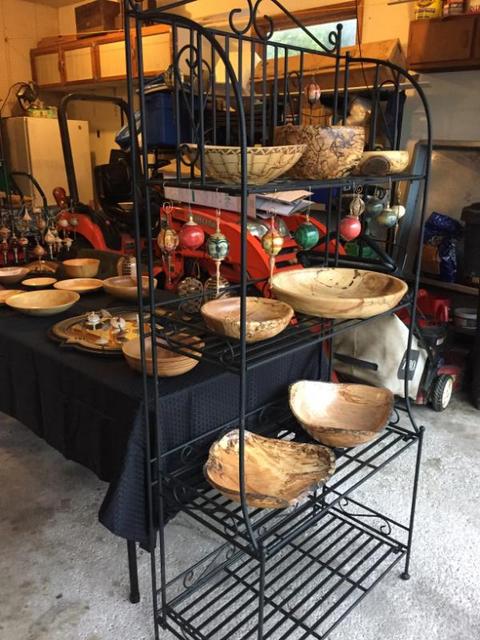
Doing my first craft show in a couple weeks, very small venue, about 10 artisans I believe. Wife and I did a mock set up in the garage this afternoon. This is most of what I will have although there will be a few more bowls. Have no idea what I'm doing. It's my idea the larger black shelf will face the flow of traffic and have my nicest pieces on it. The mirror really sets the tops off IMO. Appreciate any thoughts of opinions.
- 15 replies
-
- 5
-
-
- wood turning
- wood turnin
- (and 5 more)
-
Saw this on FB this morning and as a wood turner it spoke to me. It was my first intention to post it in the turning forum but I think it's relevant to every aspect of wood working. Steve
- 5 replies
-
- 5
-
-
- art
- woodturning
- (and 1 more)