


Part#2 Layout

By lew
· 1,881 views
The second part will concentrate on the layout of the rolling pin blank in preparation for cutting the slots. Create a blank that is 22” long and 2” square.

Locate the center of the length (11”) and carry a line around the blank.

The ellipses are 11” long and made of three pieces of 1/8” thick material
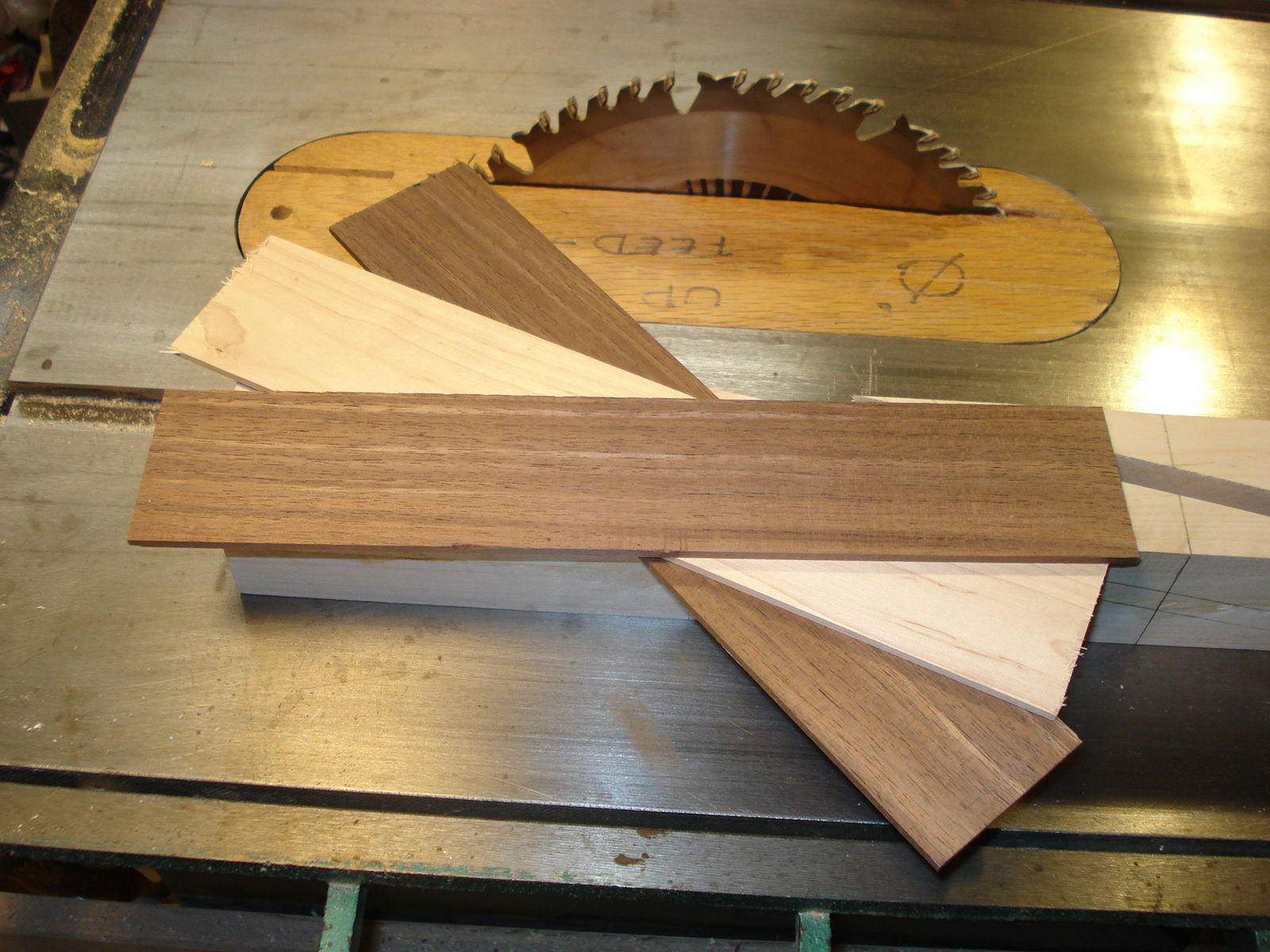
Layout a mark 5 ½” on either side of the centerline and accurately carry the lines around the blank.
To assist in laying out the diagonals, use a 3/8” thick spacer gauge, drawing lines on the blank, along BOTH sides of the spacer gauge. It is not necessary to layout both diagonals on each side. However, a check of the second diagonal will indicate if the layout is accurate and crossing in the center of the blank.

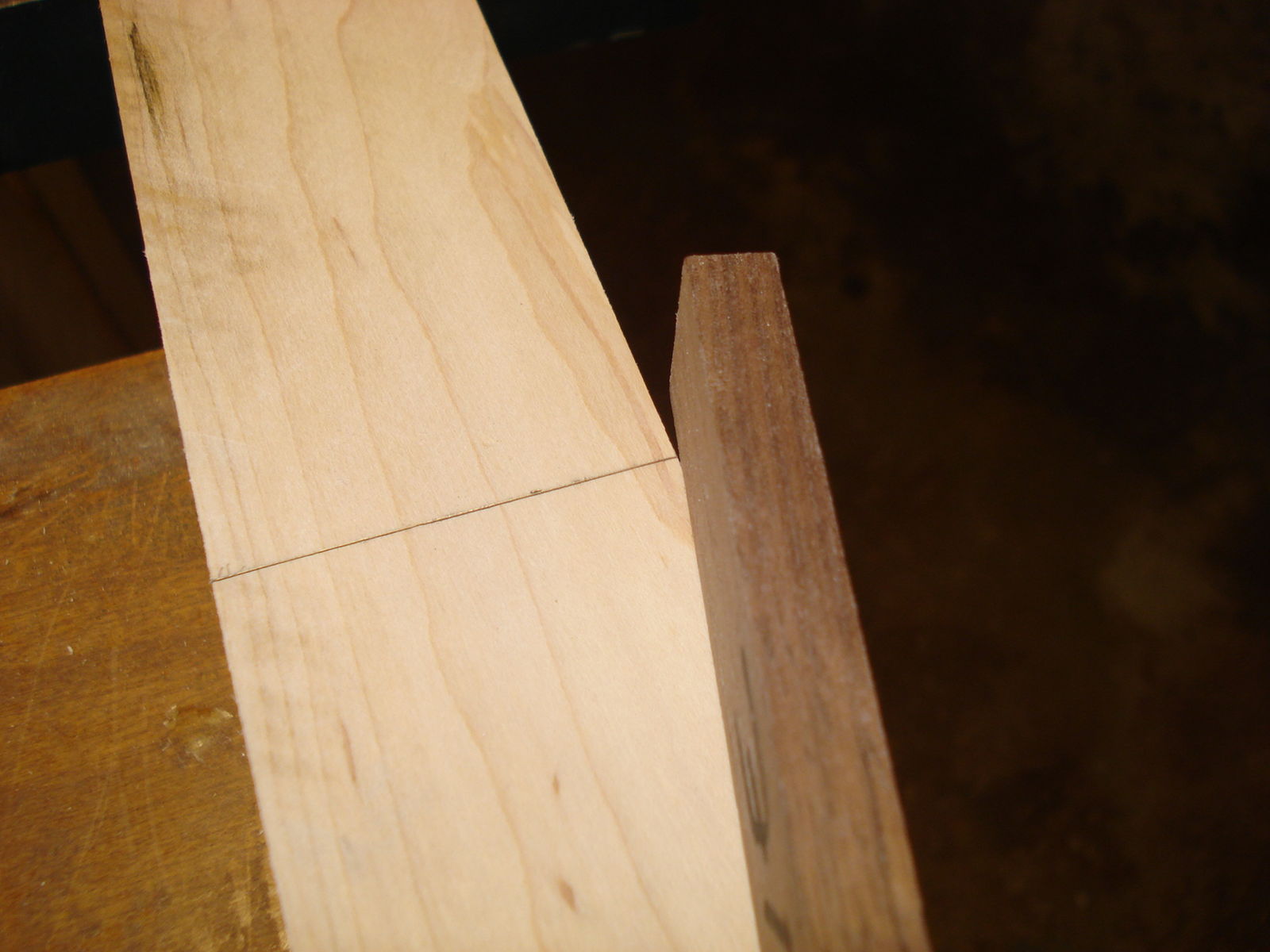

NOTE: the cut for the diagonal strips falls within the 11” layout lines
Rotate the blank 90 degrees and layout the location on the next diagonal cut.
Continue rotating and drawing the diagonals until all four sides have been completed.

Each diagonal consisted of two drawn lines. One line intersected with the layout line that defined the end of the ellipse. The second diagonal line ends “short” of the ellipse layout line. The location of the end, of this diagonal line, must be carried around the blank. These lines define the location of the saw cuts for the strips that create the ellipse.
I have also begun to mark each end of the blank at the exact center of each end. This along with a centering line on the jig have helped reduce positioning errors as the saw kerf widens over time.

Accuracy is important when laying out these lines in order to get the ellipses to maintain continuity.
This drawing is not to scale. The measurements are what I used to make this rolling pin. The length and diameters were averaged from various baking supply websites for their rolling pins.

-
 1
1
Recommended Comments
Join the conversation
You are posting as a guest. If you have an account, sign in now to post with your account.
Note: Your post will require moderator approval before it will be visible.